
Unpacking a robot vacuum is the easy bit. The first clean can be less straightforward when there are charging cables under the sofa, a rug beside the kitchen tiles and a dock that needs somewhere to live. Setting up a robot vacuum cleaner carefully makes its daily route more useful.
We’ll walk through the dock, the first map and the room settings, then cover what to check if it misses an area or struggles to get home. You don’t need to install it like an appliance, but a little preparation helps.
Choose a place for the dock
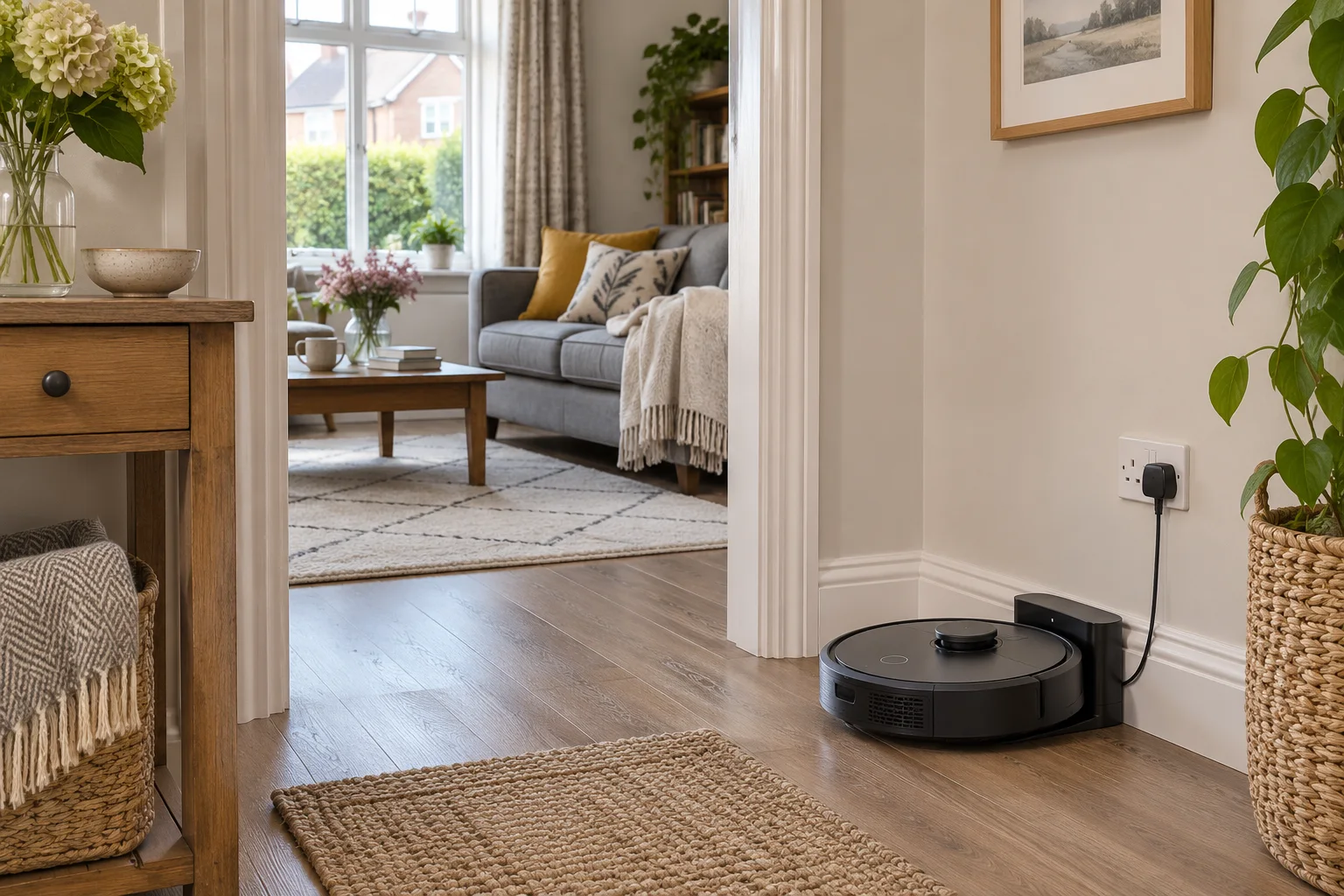
Put the dock on a level surface against a wall, near a suitable socket, with enough clear floor for the robot to approach it. Allow the clearance shown in your exact model’s manual rather than assuming every dock needs the same space. A self-emptying or mop-washing station also needs room for you to lift out its bag or water tanks. iRobot’s dock guidance explains why position affects docking and mapping.
Prepare the rooms for the first run
Pick up loose leads, small toys and anything that could catch in the brush. Open doors to rooms you want on the map and move light obstacles that would give the robot a false idea of the floor plan. If it will mop, first check the flooring maker’s care instructions; “hard floor” doesn’t automatically mean safe to wet. iRobot’s mapping advice also recommends a clear route for the first map.
Connect the app and make the first map
Charge the robot as its manual directs, connect it through the manufacturer’s app and install any offered firmware update. Some models require a 2.4 GHz Wi-Fi network, so follow the exact setup screen if pairing fails. Start the mapping run from the dock and let the robot return there; carrying it between rooms mid-map can confuse its position. iRobot’s first-run guidance covers the clear-floor and return-to-dock steps. Room labels and maps can be corrected after the first run.
Set boundaries before scheduling a clean
Mark no-go zones around troublesome cables or a pet-feeding area. For a vacuum-and-mop model, check where the app lets you exclude rugs and carpets from wet cleaning. A small mop lift may not clear a deep-pile rug, so choose the model’s carpet-avoidance setting when in doubt. If you are still choosing between a dry-only machine and a mop combo, our vacuum-only versus mop guide sets out the upkeep.
Try one ordinary clean, then refine it
Watch the first proper clean. Check thresholds, chair legs, the back-door mat and the route home; adjust zones or dock position if a problem repeats. Empty the robot bin or check the dock bag, wipe sensors as the manual directs and remove hair from the brush. A dock reduces handling, but it does not remove these jobs. Our buying guide explains the dock and maintenance choices.
If setup goes wrong
| Problem | First thing to check |
|---|---|
| It cannot find the dock | Power, dock clearance and whether the mapping run began there |
| A room is missing | Door access and whether the app allows a remap or room edit |
| It catches on a rug | Loose fringe or pile height; set a no-go or no-mop zone as needed |
| The app will not connect | The model’s Wi-Fi requirements, app permissions and pairing steps |
On a phone, swipe the table sideways.
If the same fault continues, use the error code and exact model number in the manufacturer’s support guide rather than repeatedly resetting the machine.
FAQs
How long does it take to set up a robot vacuum?
Allow time to charge it, prepare the rooms, connect the app and make a first map. The exact time depends on the model and the size of your home.
Does a robot vacuum need Wi-Fi?
Some can run a basic clean without Wi-Fi, but mapping, schedules and updates may rely on the app and a connection. Check the exact manual.
Should I move the dock after mapping?
Avoid moving it unnecessarily. If you do, follow the manufacturer’s instructions for relocating the dock and updating the map.